Everything DiviVault does
One cloud library for sections, pages, CSS, code snippets, Theme Options, and design variables. Grouped below by where you use each part.
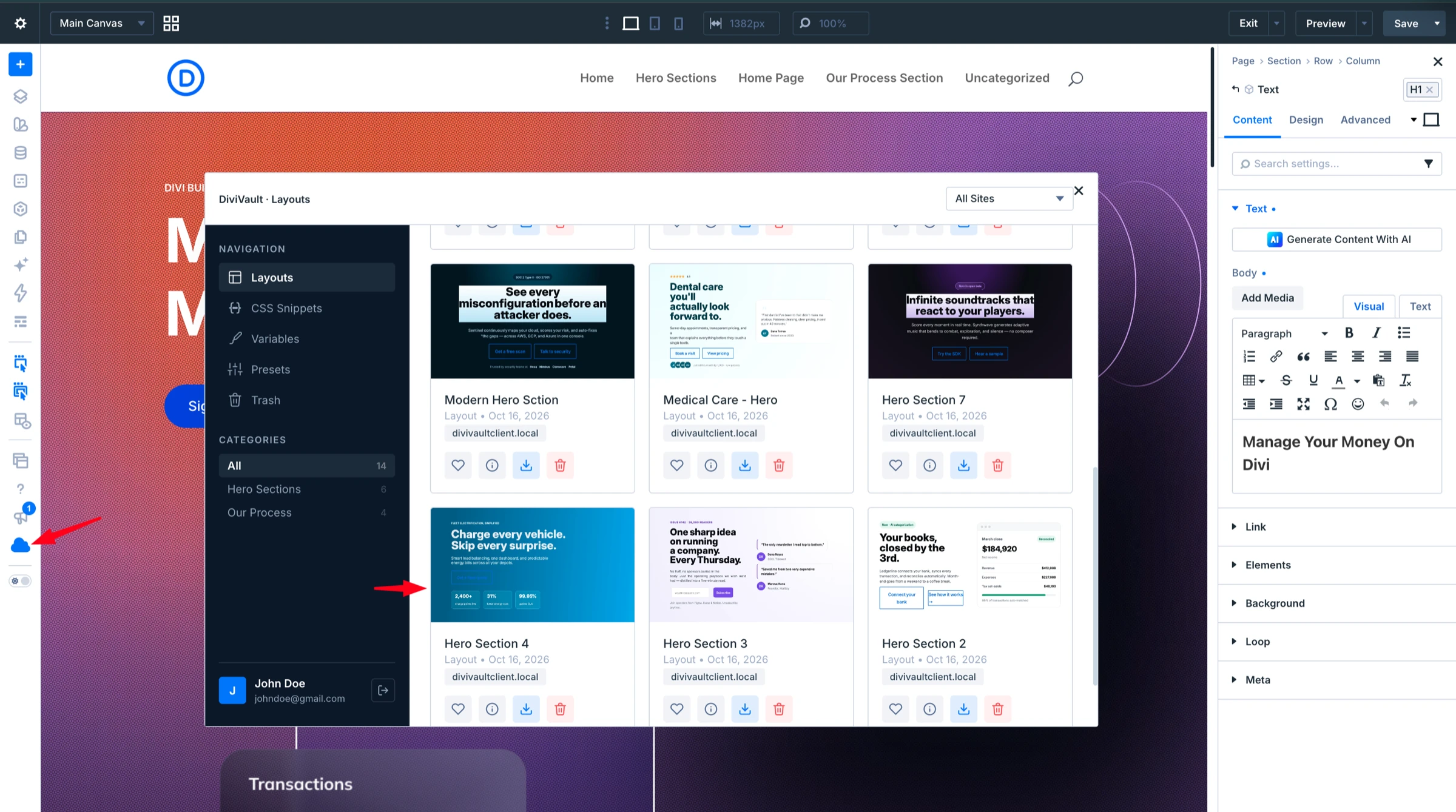
Cloud Library
Your saved designs, inside the Visual Builder.
Cloud Library in the Visual Builder
Open your library from the builder bar and add saved items to the page without leaving Divi.
Insert tab
A DiviVault tab in Divi's Insert window that shows only what fits the spot you clicked.
Search, filter, and sort
Search by name, description, or CSS code, filter by category or tag, and sort by date or name.
Favorites
Mark layouts, CSS snippets, and variables as favorites and show just those.
Layout Packs
Open a group of layouts you put together on the DiviVault dashboard and import any one of them.
A window you can move
Drag, resize, expand, or snap the library window wherever it suits you.
Site-wise library
PremiumEvery item shows the site it came from. Filter by All Sites, This Site, Dashboard Uploads, or any connected site.
List and tag views
Next weekSwitch the library between Grid, List, and items grouped by tag.
Trash and restore
Deleted items go to Trash first. Restore them within 30 days, or delete them permanently right away.

Saving
Save sections, rows, modules, and full pages.
Save sections, rows, and modules
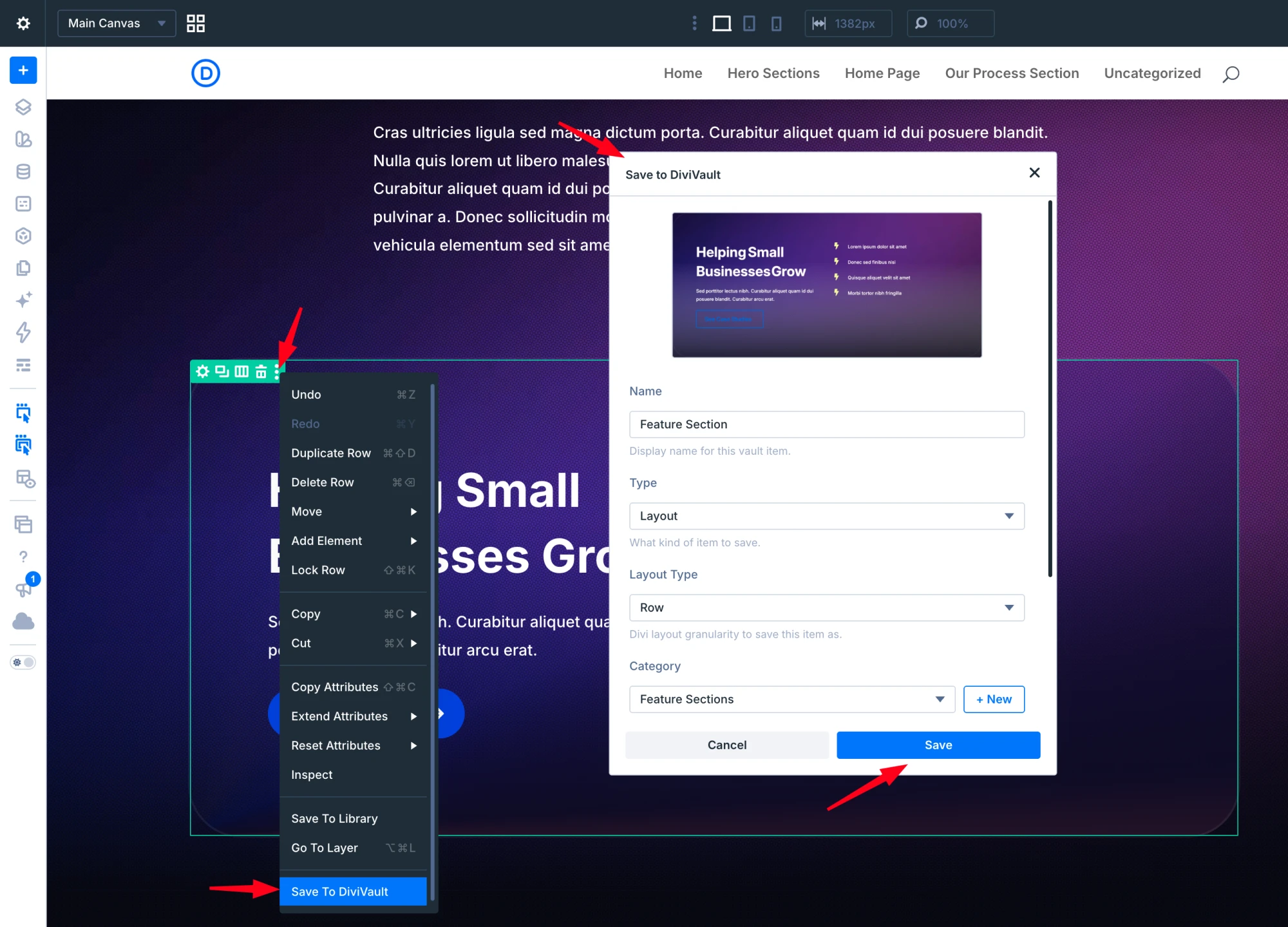
Right-click any section, row, or module and choose Save to DiviVault.
Save full pages
Choose Save Page to DiviVault from the page-bar gear menu to keep every section as one layout.
The save window
Name the item, pick a category and tags, and capture a thumbnail if you like. The type is set automatically from what you saved.
Categories and tags
Create categories without leaving the save window. Your existing tags are suggested as you type.
Theme Builder templates and template sets
Save a template or a whole template set from the Theme Builder and import it on another site.
Move Divi Library items to DiviVault
Send one item, or many at once, from a site's Divi Library into DiviVault.
Bulk upload layout files
Upload many Divi layout export files in one go.
CSS and code snippets
Reuse CSS, scripts, and tracking code.
CSS snippets in the builder
Save, update, and insert CSS from any section, row, module, or Page Settings CSS editor, after the existing code or in place of it.
Code Snippet Library
Reuse the Theme Options Custom CSS and all four Integration code fields on every site.
Save selected code only
Highlight part of the code in an editor and save just that part as a snippet.
Code Module snippets
Save the HTML or JavaScript from a Code Module and insert snippets into Code Modules on any site.
Import snippet files
Bring existing snippet files into your DiviVault snippet library.
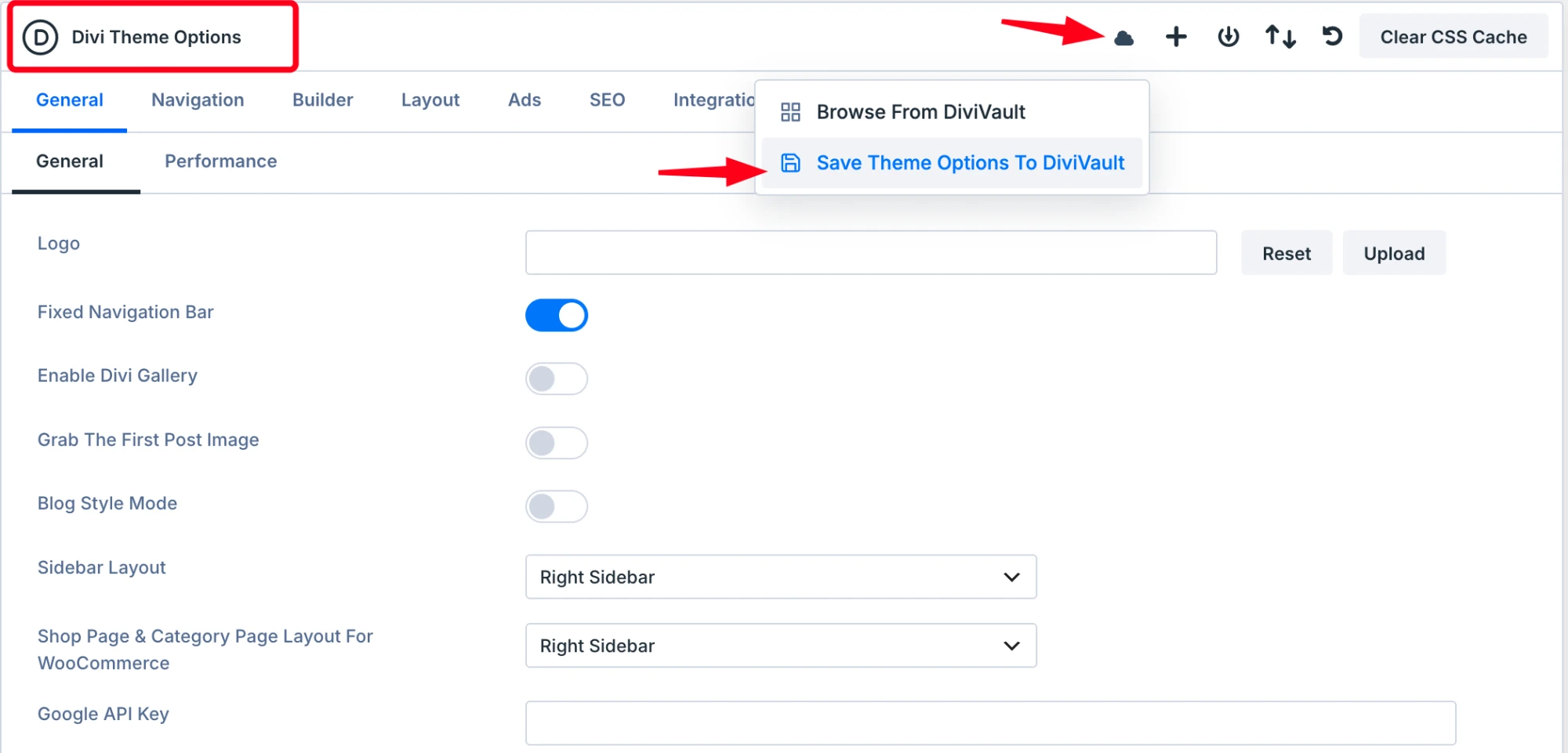
Theme Options
Set up Theme Options once, apply them anywhere.
Theme Options snapshots
Save all your Theme Options as a snapshot, browse your snapshots, and apply one to another site.
Export snapshots for Divi
PremiumExport a snapshot as a file that Divi's own Theme Options import accepts.
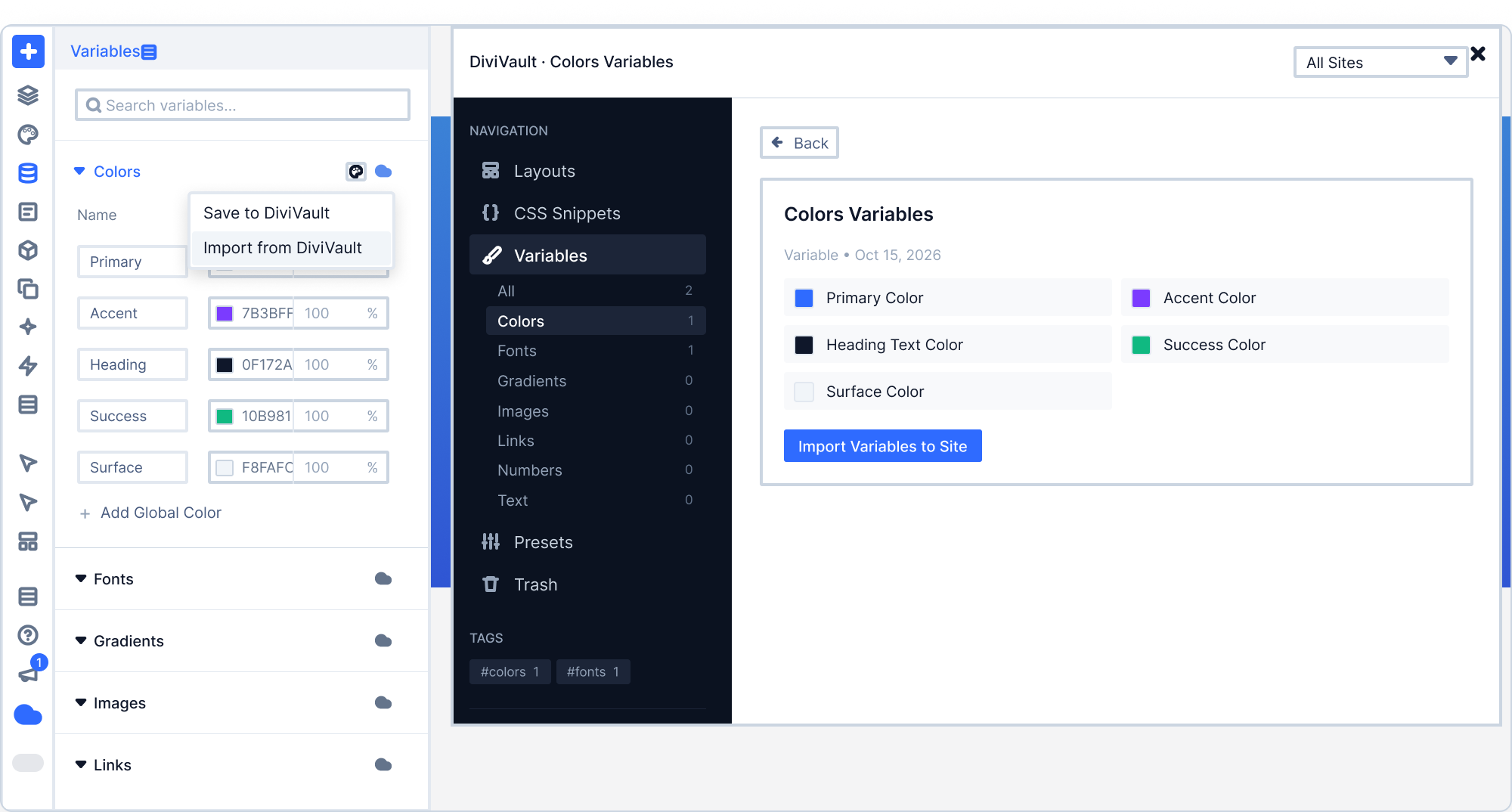
Design system
Design variables and designs that travel intact.
Design variables sync
PremiumSave and import variable groups: Colors, Fonts, Gradients, Images, Links, Numbers, and Text. Merge or replace on import.
Portable designs
PremiumImages up to 2 MB each and the global colors and variables a layout uses travel with it. Images already in the Media Library are reused.
Presets sync
PremiumSave presets with their full design settings and import them on any site.
Layout library
New layouts every week, on paid plans.
The DiviVault layout library
PremiumA few new layouts every week, ready to use on any connected site.
Paste from Cloud
PremiumCopy a design on getdivivault.com and paste it into the Visual Builder as normal, editable Divi modules.
Account and settings
Connect sites and choose what is switched on.
Connect from WordPress admin
Click Connect Now on the DiviVault page in WordPress admin. Each WordPress user signs in to their own account.
Turn each feature on or off
Cloud Features in the settings lets administrators switch each part of DiviVault on or off.
Up to 500 layouts
The free plan holds up to 500 layouts.
Unlimited layouts
PremiumPaid plans have no layout limit.
What you need
The four things you need before using DiviVault.
- 6.0 or newer
WordPress
DiviVault is a WordPress plugin, installed on each site you want to connect to your library.
- 7.4 or newer
PHP
Your host sets the PHP version. You can check it under Tools, then Site Health, in WordPress admin.
- Your own license
Divi 5
DiviVault works inside the Divi 5 Visual Builder. It does not include a Divi license, so you bring your own.
- Free to start
A DiviVault account
Create an account, then open the DiviVault page in WordPress admin and click Connect Now to link each site.
Start with the free plan
Everything in your own cloud library is on the free plan, up to 500 layouts. Paid plans add the rest.